Brands and multiple accounts
A brand is one identity that posts on social media: a person, a company, a product or a client.
What belongs to a brand
- Name, handle and website
- Logo, fonts and colours
- Card design
- Posts, articles and the publishing queue
- Chats and the assistant's notes
- Social accounts
When to use several brands
| Case | Brands |
|---|---|
| One person posting as themselves | One |
| A person who also runs a product, for example TemplrPress | Two: the person and TemplrPress |
| A company with several products | One per product |
| An agency handling social media for several clients | One per client |
Brands are kept apart. A post is published only with the social account of its own brand, and the confirmation names the brand.
Switch brand
Press the brand name at the top left and pick a brand. The whole studio changes to it.
Add a brand
- Open Settings → Brands and press New brand.
- Enter a name and a handle.
- Choose Blank, or a copy of the open brand's logo, colours and fonts. A copy never includes accounts or posts.
- Press Create brand.
- Connect its social accounts.
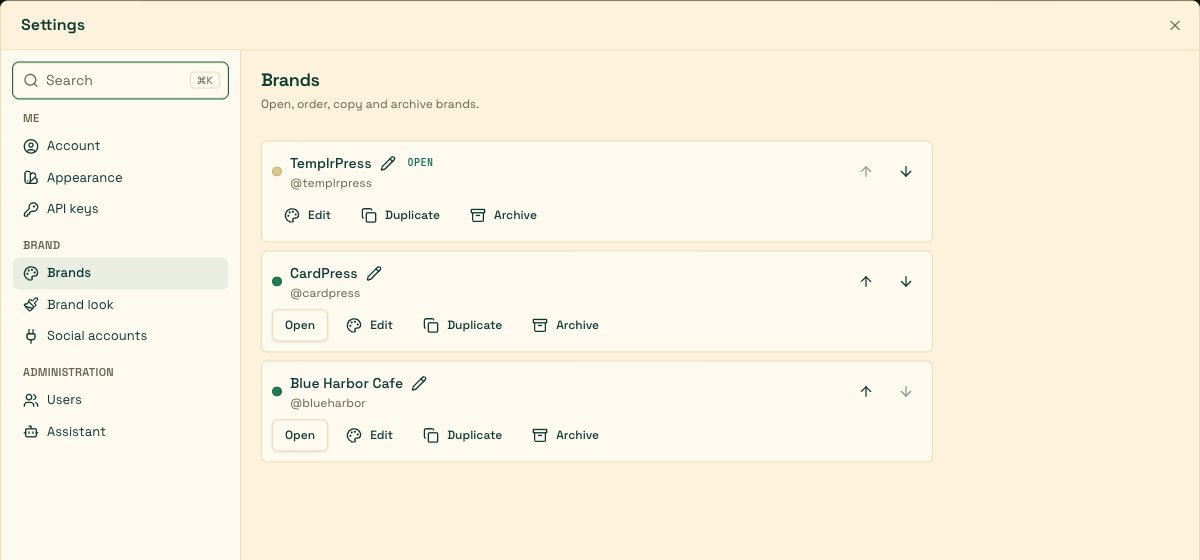
Change a brand
- Rename: press the pencil beside the name. Cards, posts and the logo text stay as they are.
- Edit: name, handle, website, logo, fonts and colours, with the card beside them.
- Duplicate: starts a new brand from this one's look.
- Arrows: change the order of the list.
Archive and delete
Archive hides a brand and keeps everything. Posts already scheduled are still sent. Restore brings it back.
Only an archived brand can be deleted, and not while it has scheduled or unfinished posts. At least one brand always stays.
Several clients
- Add one brand for each client.
- Give each its logo, fonts and colours under Edit.
- Open the brand and connect that client's social accounts.
- Before writing, check the open brand at the top left.
- In the Calendar, show one client or All brands.
Who the brand is
A brand can also hold its type (company or individual), name, address, mobile and email. All are optional: open Contact details in New brand, or Details under Brand look, and press Save details.
These details are private. Only the brand's owner and admins see them. They are never on a card or a public page, and they are not sent to the assistant.
Working in a team
A brand is seen by the person who made it and by admins. Two editors cannot yet share one brand. For a client brand handled by several people, an admin account is needed to see everyone's brands.