Getting started
CardPress makes social cards, posts and articles in a brand's own colours and fonts, and publishes posts to LinkedIn.
Dashboard
Signing in opens the Dashboard of the open brand, and so does the logo.
- The top row shows how many Brands you can open and the LLM cost over all of them. An administrator also sees how many Users there are.
- Choose 7, 30 or 90 days, All, or Custom: a calendar opens, you press the first and the last day, then Apply.
- Posts and Articles created in that time are counted by where they stand now. Press a line to see those items in the Library.
- Assistant shows the cost, sessions, replies and working time for the same time, with the cost day by day or week by week.
- Largest sessions lists the conversations that cost most. Press one to open it.
- Next up and Recently edited open the item.
- All brands adds the figures up, with a line for each brand.
The cost is the list price of replies in the chat, in US dollars. It is not a bill. Deleted conversations are not counted.
The screen
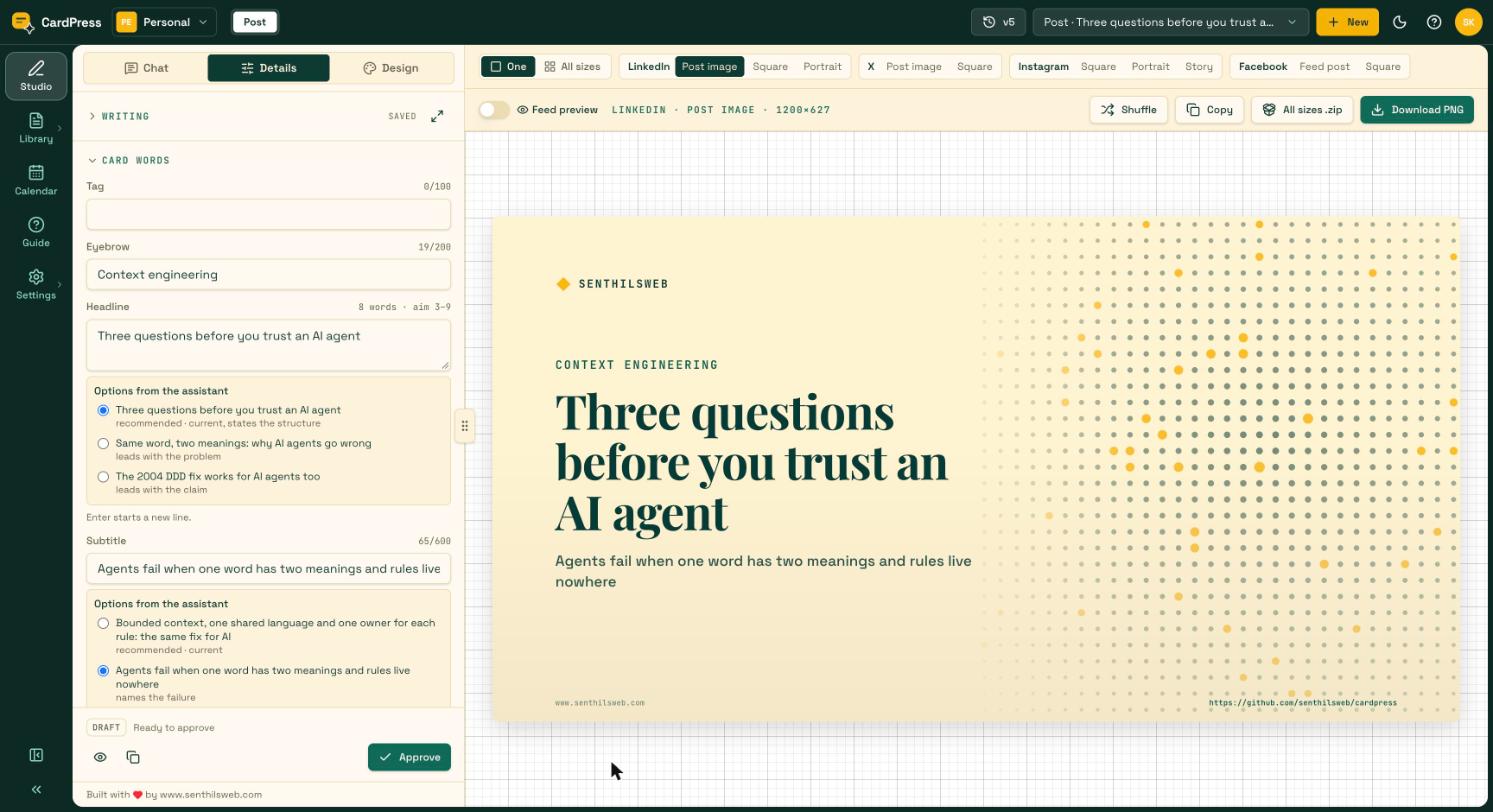
| Part | What it does |
|---|---|
| Header | Brand menu, the open item and New in the studio, light or dark, the guide and the account menu |
| Side bar | Dashboard, Studio, Library, Calendar, Guide and Settings. The arrows at the bottom show icons only. |
| Chat | Write and change a post or article by asking the assistant |
| Details | Every field: text, card words, hashtags, planning, publishing |
| Design | How the card looks |
| Card area | The card or the preview, sizes, and download |
On a phone the side bar moves to the bottom.
Settings opens over the page in use, and closing it goes back there. Search finds a settings page by its name or by what is on it, such as password or LinkedIn. CardPress asks before unsaved changes are lost.
About CardPress, in the account menu, shows which version of CardPress and of the assistant is running, with a button to copy it into a problem report.
Before the first post
- Set up a brand: name, logo, fonts and colours.
- Connect LinkedIn for that brand.
First post in six steps
- Check the open brand at the top left.
- Press New at the top.
- Write: open Chat, tick Post, say what the post is about and press send. Or type under Details.
- Design: open Design and choose a layout, a background and colours.
- Press Approve.
- Press Publish, then Publish now… or Schedule….