Connect social accounts
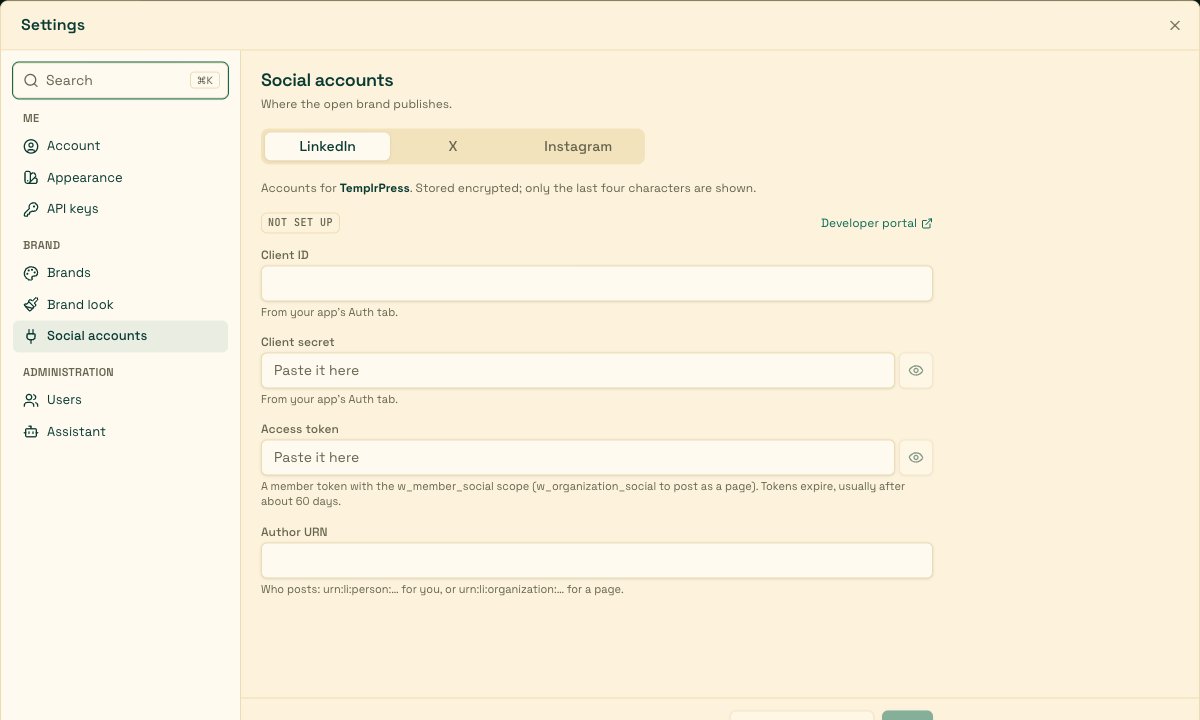
Social accounts are connected once for each brand, under Settings → Social accounts. Open the right brand first.
| Network | Publish from CardPress | Until then |
|---|---|---|
| Yes | ||
| X | Not yet. Keys can be saved. | Download the image and post by hand |
| Not yet. Values can be saved. | Download the image and post by hand | |
| No. Image sizes only. | Download the image and post by hand |
The steps below were checked against each network's developer information on 26 November 2026. Names on the networks' own screens change from time to time.
LinkedIn: what is needed
| Field | What it is |
|---|---|
| Client ID, Client secret | Identify the LinkedIn app. Used by Test connection. |
| Access token | Permission to post. Lasts about 60 days. |
| Author URN | Who posts: a person or a company page |
LinkedIn: post as a person
1. Create the app
- Open linkedin.com/developers/apps and press Create app.
- Enter a name and a logo. LinkedIn asks for a company page; any page managed by the account works, and nothing is posted to it.
- On the app's Settings tab, press Verify beside the page, and open the link it makes while signed in as an admin of that page.
2. Add the products
On the Products tab, request Share on LinkedIn and Sign In with LinkedIn using OpenID Connect. Both are usually added at once.
3. Get the values
- On the Auth tab, copy the Client ID and Primary Client Secret.
- Open the token generator, select the app, tick
openid,profileandw_member_social, and press Request access token. Copy the token.
4. Find the Author URN
This is the one step done outside a web page. In the Terminal app on a Mac, run the two lines below. After the first line, paste the token and press Enter; it stays hidden.
read -s TOKEN
curl -s https://api.linkedin.com/v2/userinfo -H "Authorization: Bearer $TOKEN"
The answer contains "sub" followed by a short code. The Author URN is urn:li:person: followed by that code.
5. Save and test
- In CardPress open Settings → Social accounts → LinkedIn.
- Enter the four values and press Save.
- Press Test connection. It shows whether the token is valid and when it ends.
A token works like a password. Do not send it by email or chat, or paste it anywhere except the field above.
LinkedIn: post as a company page
Posting as a page needs LinkedIn's approval of the Community Management API. LinkedIn offers it to registered organisations and reviews each request, which can take some time.
- Create a separate app for this, linked to the company page. LinkedIn requires this product to be the only one on its app.
- Request Community Management API on the Products tab and answer LinkedIn's questions.
- After approval, make a token with
w_organization_social. The person making it must be an admin of the page. - Use the Author URN
urn:li:organization:followed by the page's number, shown in the address of the page's admin view.
A brand posts as one author. To post both as a person and as a page, use two brands.
LinkedIn: renew the token
About every 60 days, make a new token in the token generator, paste it into Access token, press Save, then Test connection.
X
CardPress does not publish to X yet. The values can be saved for later.
- Open console.x.com, sign in and create an app.
- In the app's user authentication settings, set the permission to Read and write.
- Under Keys and tokens, generate the API key and secret and the Access token and secret. Generate them after setting the permission. Each is shown only once.
- In CardPress open the X tab, enter the four values and press Save.
X may charge for posting through an app. Check X's current terms.
CardPress does not publish to Instagram yet. The values can be saved for later.
- Make the Instagram account a Business or Creator account, and link it to a Facebook Page.
- Create an app at developers.facebook.com/apps and add Instagram to it.
- Collect the App ID, App secret, a long-lived access token (about 60 days) and the Business account ID.
- In CardPress open the Instagram tab, enter them and press Save.
Using accounts that belong to others, such as a client's, can need Meta's review of the app and business verification.
Saved values
A saved secret shows only its last characters and cannot be shown again. Type a new value to replace it. The bin removes a value; press it twice. A brand never uses another brand's values.