Design with chat
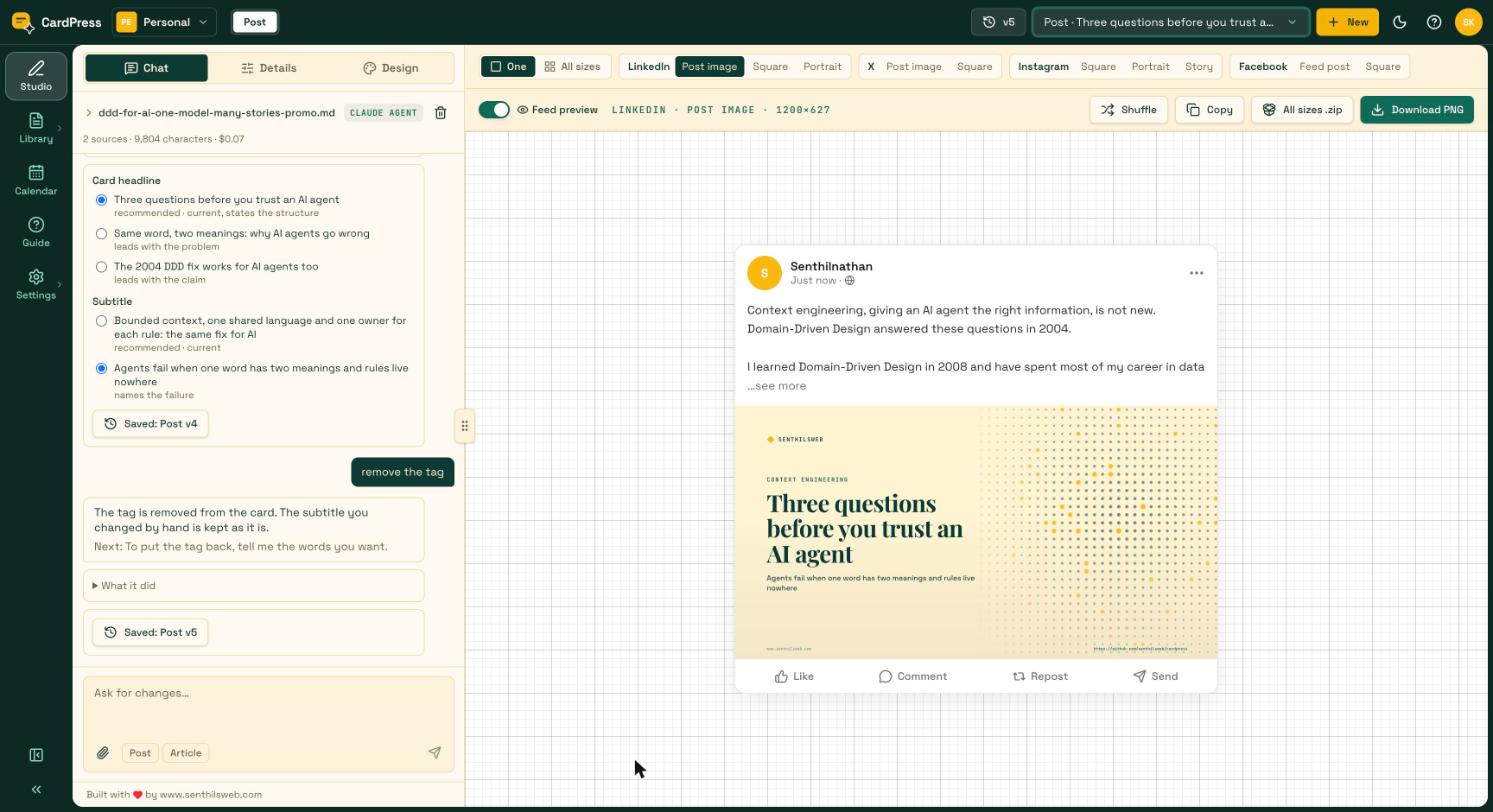
The chat is the quickest way from an idea to a finished card. The assistant writes the post or article and the words on the card, offers choices, and shows each one on the card at once. It cannot publish.
How the work flows
| Step | In the chat | On the screen |
|---|---|---|
| Describe | Say what is needed, with material if there is any | The draft and card fill in |
| Choose | Select among the options offered | The card shows the choice before anything is saved |
| Refine | Ask for changes in plain words | Only what was asked changes |
| Keep | Save as version, or Undo | Earlier versions stay available |
| Design | Layout, background and colours under Design | |
| Finish | Approve, then publish or schedule |
Typing under Details and chatting work on the same draft, so either can be used at any moment.
Ask for a draft
- Open Chat.
- Tick Post, Article or both.
- Say what it is about, then press send or Enter.
The first draft is checked for quality and can take a few minutes. Stop ends a reply.
Give it material
Press the paperclip to attach a PDF, Word, Markdown or text file (up to 10 MB), add a link to a public web page, or paste text.
Pick from options
Ask for choices, for example "three headlines". Select one to see it on the card. Nothing is saved yet.
Save, undo, keep
| Button | Result |
|---|---|
| Save as version | Puts the selected options into the post and saves a version |
| Undo | Returns the post to how it was before that reply. Not possible after further editing. |
| Keep as is | Drops the preview |
Examples
- "Write a post about our new report."
- "Give me three headlines."
- "Make it shorter."
- "Add an eyebrow." and "Remove the eyebrow."
- "Clear the left footer."
The assistant changes the words. Layout, background and colours are chosen under Design.
Chats
New starts a fresh chat and post. The chat's name at the top opens the list of chats, with search. Deleting a chat keeps the post it wrote. Notes shows what the assistant remembers about the brand; any note can be removed.
If the panel says no assistant is set up, ask the person who runs this CardPress.